- Web
- Mar 30, 2026
‘Send Later’: iOS 18 will let you schedule messages
-

- Web Desk
- Aug 03, 2024
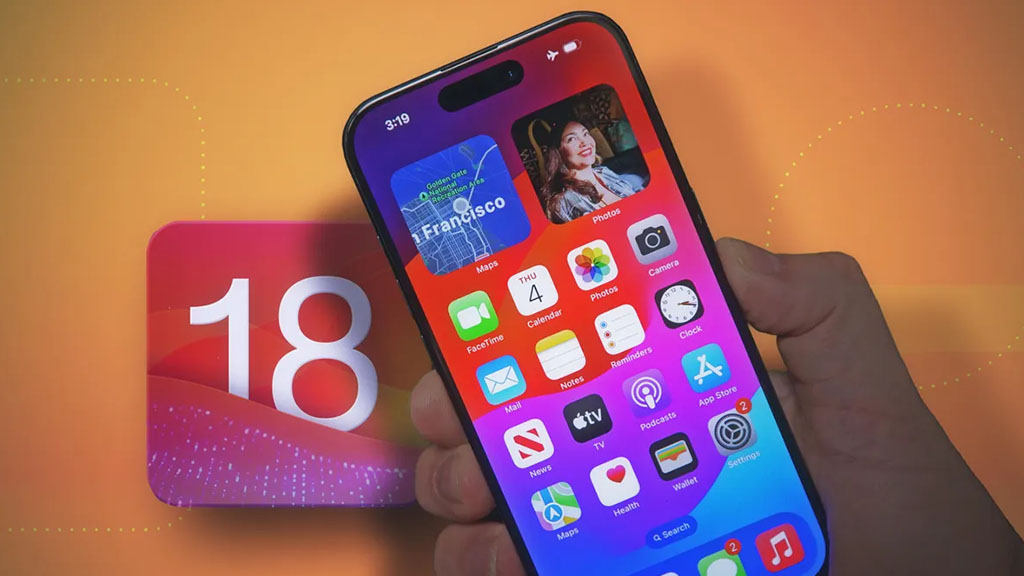
WEB DESK: Apple is set to introduce a host of new features in the Messages app with the release of iOS 18.
The update will enhance messaging capabilities with exciting additions including Apple Intelligence features, new formatting options, updated effects, satellite support, improved communication with non-iMessage users, and more. Here’s a detailed look at the key changes coming to the Messages app:
Scheduled messaging
One of the standout features in iOS 18 is the ability to schedule iMessages for future delivery. This feature allows users to set up messages to be sent at a later time or date. For instance, you can pre-schedule a birthday greeting so it arrives exactly on the special day.
To use this feature, follow these steps:
- Open a conversation in the Messages app.
- Tap the “+” button beside the text box.
- Select “More”.
- Choose “Send Later”.
- Enter your message.
- Tap the blue bubble, which defaults to “Tomorrow 9:00 AM”, to adjust the send time using the slider for date and time.
- Tap the blue arrow to schedule the message.
Scheduled messages can be set up up to 14 days in advance. Even if your iPhone is offline, messages will be sent as scheduled. Scheduled messages appear at the bottom of the conversation thread.
To modify or cancel a scheduled message, tap “Edit” to adjust the time, delete the message, or send it immediately.
Enhanced tapback reactions
iOS 18 also brings significant updates to Tapbacks, the quick reaction icons you use to respond to messages. These include:
Redesigned icons: The six standard Tapback icons now feature more colour and detail. The updated design is visible both when you respond with Tapbacks and when viewing received Tapbacks.
Enhanced visibility: When viewing a Tapback response in a group chat, you can now see who sent each reaction, making it easier to track responses.
Intelligent Smart Replies
With Apple Intelligence, the Messages app will now offer Smart Replies based on the content of the received message.
For example, if someone asks, “Do you want to go to the movies?” suggested responses like “Sure!” or “Sorry, busy tomorrow” will appear. Smart Replies, which are more contextually aware than previous suggestions, will be displayed at the top of the keyboard.
To use a Smart Reply, simply tap it to insert it into the text box. If the suggestion doesn’t suit your needs, you can ignore it and type your own response. Suggestions will continue to appear even if you choose to disregard a Smart Reply.
These updates are designed to streamline communication and offer more versatile messaging options, making iOS 18 a significant upgrade for users of the Messages app.
Read next: Apple’s first foldable iPad delayed, release now expected in 2026
You May Also Like


- Web
- Mar 09, 2026
Anthropic sues Pentagon over AI restrictions

- Web Desk
- Feb 16, 2026
X service restored after global disruption